Adding a custom Font Family to Help Center | Community
Skip to main content

Adding a custom Font Family to Help Center

  • October 16, 2013
  • 59 replies
  • 0 views

Show first post
This topic has been closed for replies.

59 replies

ModeratorWes

Hi Lauren - Its been a while since I've worked with a TypeKit font but it should have gave you more code.  The CSS you posted is correct but if you should have either an @font-face import code or some code that goes in your Document Head that imports the fonts for you.  Hope this helps and gets you on the right track.


  • November 16, 2016

Hi Wes, Thanks for your response! I posted the script they gave me in the Document Head on my Zendesk template, but for some reason it's still not working. 

Good to hear the syntax is correct, I wasn't sure because Zendesk originally had fonts formatted like $font1 and I wasn't sure if I should use that or the quotes. 


ModeratorWes

@Lauren - One thing to take a look at is make sure to use https in the script you copied into the document head.

If that doesn't work is your HC live yet so I can take a look at the code.


  • November 16, 2016

Got it resolved, FYI for anyone using typekit, delete the ".tk-" at the beginning of your font names. 


Jennifer16
  • November 16, 2016

Thanks for reporting back, Lauren!


  • March 2, 2017

Hi everyone, I am trying to add my custom Font Family but although I followed the same steps as on this post, zendesk doesn't still recognize my font. 


Anyone encountered the same problem ? 

@font-face {

  font-family: "Milliard-Bold";

  src: url(/assets/myfont-Milliard-Bold.woff) format("woff");

  font-style: "normal";

  font-weight: normal;

}


then I added the src as it its on the posts. 

Cheers,

Cemre.


ModeratorWes

Hi @Cemre and welcome to the Zendesk community.  

Your src doesn't look right, it should look like this:

src: url('/hc/theme_assets/426700/115000001263/ProximaNova-Reg.otf');

When you upload your font to the assets tab it will give you an URL, that is the URL that you need to use for your src.

Also, make sure that you change the rest of your CSS - you can hit CTRL + F and search for "$font" which should show you the ones you need to change to "Milliard-Bold".

Hope this helps and if you have any further questions just let me know.


  • September 19, 2017

Hi everyone!

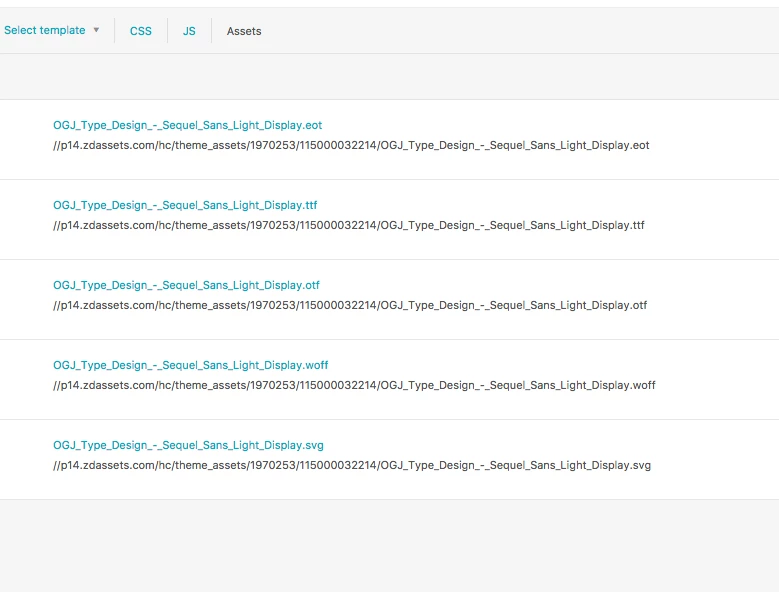
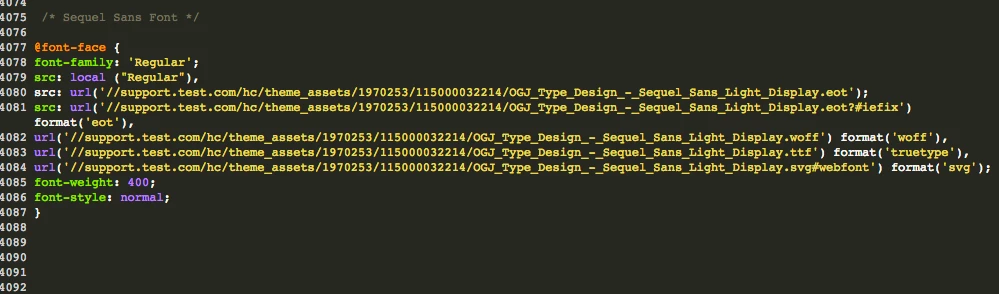
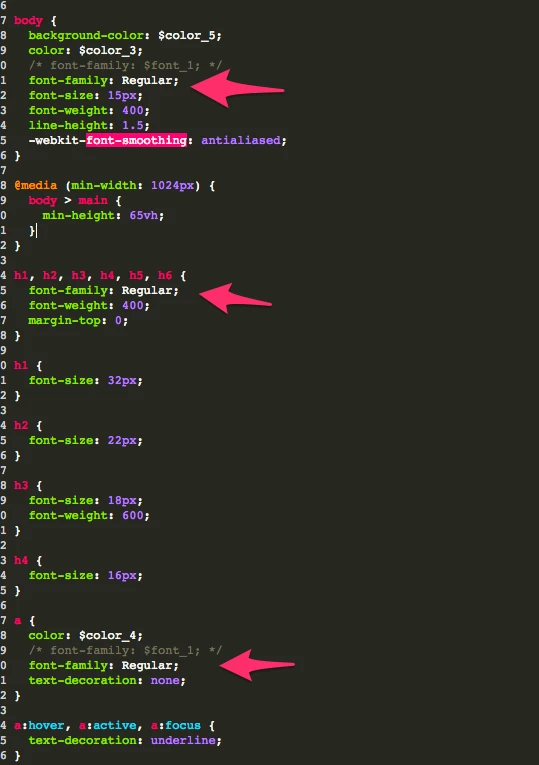
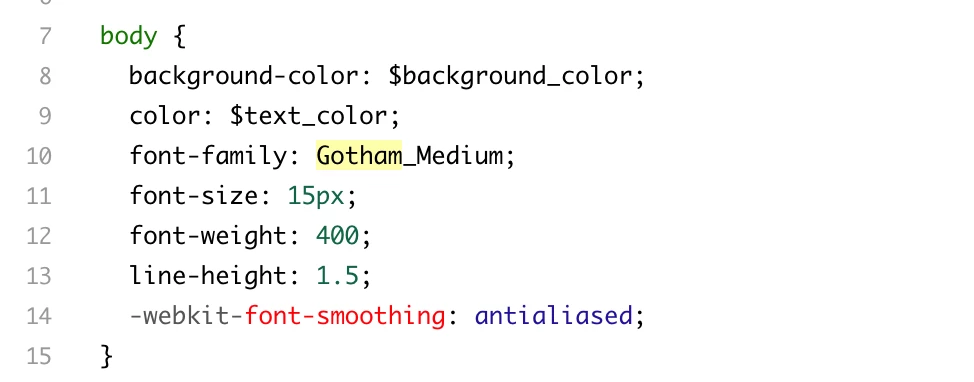
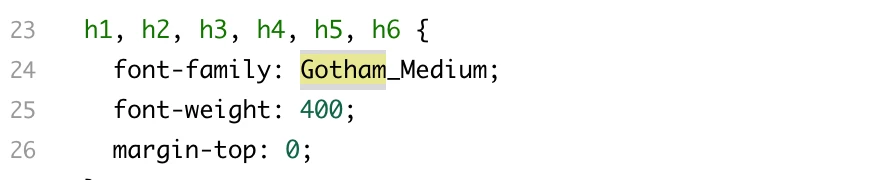
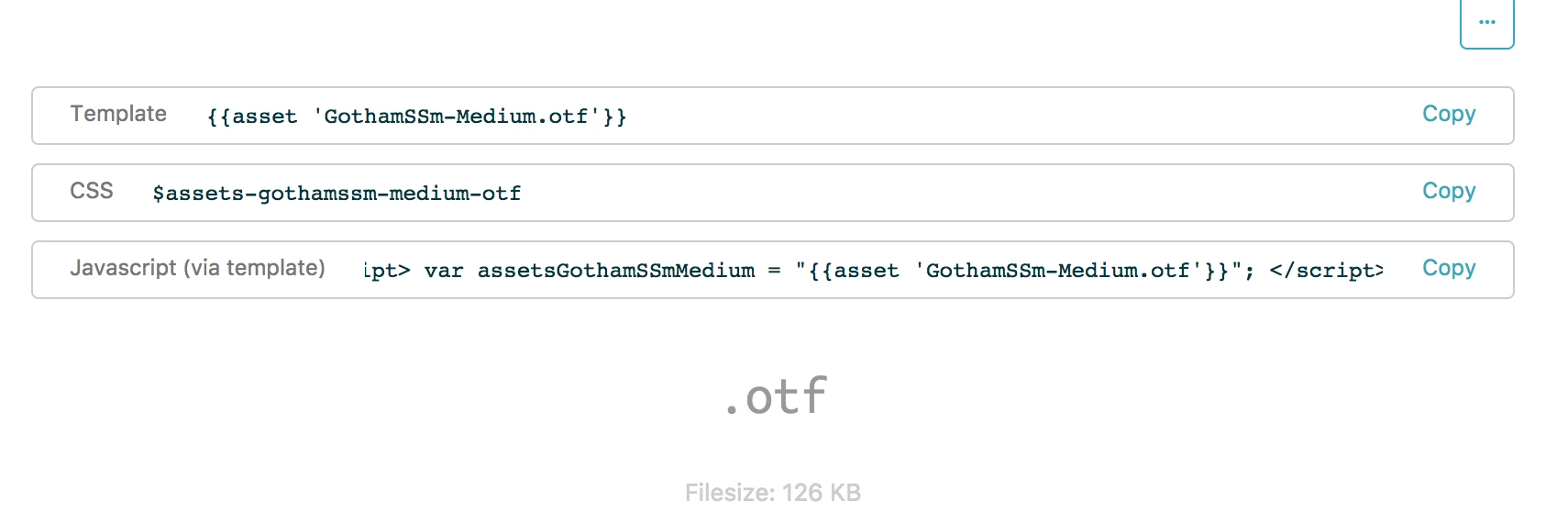
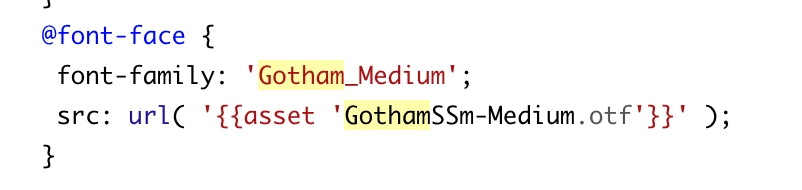
I implemented a custom font on our help center but it's not showing. The code and details are in the photos below. Please note that support.test.com is not our real domain and it's here to anonymize the account. I'll update this to our correct domain in a bit.

Does anyone know what I'm doing wrong or how I can have my custom font show?

Thanks!

Adam


  • September 28, 2017

Hey Adam! Welcome to the Community!

I'll see if I can get some of our coding gurus in here to help you out!


o2dis
  • September 28, 2017

Hello @Adam,

You can try this to a different way - 

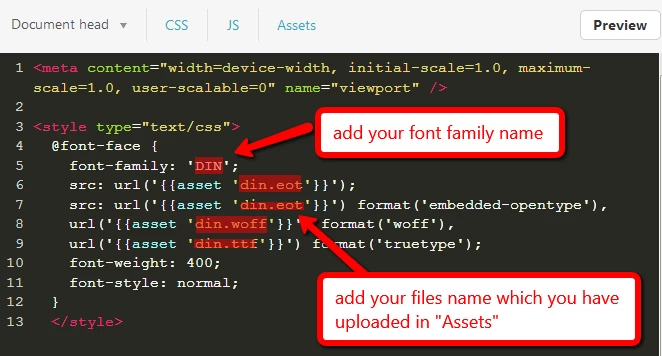
Go to the "Document Head Template" > Paste the below code on the bottom area > Add files name as per your requirement(which you have uploaded in assets tab)

<style type="text/css">
@font-face {
font-family: 'Regular';
src: url('{{asset 'YOUR-FILE-NAME.eot'}}');
src: url('{{asset 'YOUR-FILE-NAME.eot'}}') format('embedded-opentype'),
url('{{asset 'YOUR-FILE-NAME.woff'}}') format('woff'),
url('{{asset 'YOUR-FILE-NAME.ttf'}}') format('truetype');
font-weight: 400;
font-style: normal;
}
</style>

Please let us know if face any issue.

Thanks
Customer Support Team
http://customersupporttheme.com
(Experts in Zendesk Themes, Zendesk Help Center, Plugins, Help Center Branding and Customization.)


Justin30
  • November 13, 2017

What's the best way to use a custom font if the only file I have is .otf? I am wanting to use it for headers (h1, h2, etc) only.


  • December 5, 2017

Hey Justin!

I'm checking to see if one of our Community Moderators can help you with this!


Trapta
  • December 6, 2017

Hey Justin!

You can simply use the .otf file in your CSS something like this -

@font-face {
font-family: 'FONT_NAME';
src: url( '{{asset 'font.otf'}}' );
}

Or you can use font-convertor and create other formats of the font file and use it in your CSS as mentioned in the post.

Thanks


  • December 19, 2017

Hi..

I am having trouble implementing the custom fonts to Zendesk and have tried all options above. 


  • December 19, 2017

Hey Brad! Can you be more specific about what's going wrong?


Trapta
  • December 20, 2017

Hi @Brad, one question, where are you loading your @font-face? In HTML template or in CSS ?

Thanks


zach35
  • December 20, 2017

I was unable to get this to work using the original method stated. Thankfully putting it in the head worked.

<style type="text/css">
@font-face {
font-family: 'San Francisco';
src: local ('San Francisco');
src: url('{{asset 'SFUIDisplay-Thin.eot'}}'),
src: url('{{asset 'SFUIDisplay-Thin.eot?#iefix'}}'),
url('{{asset 'SFUIDisplay-Thin.woff'}}'),
url('{{asset 'SFUIDisplay-Thin.ttf'}}'),
url('{{asset 'SFUIDisplay-Thin.svg#webfont'}}');
font-weight: 200;
font-style: normal;
}
</style>


I do have another question however, I cannot for the life of me get any custom fonts to work when doing local theme development. Any ideas on that?


  • December 20, 2017

Hi @trapta,

I am loading the @font-face in the CSS, any ideas what is happening?


  • December 21, 2017

I have tried the method from @zack above and no result.

<style type="text/css">
@font-face {
font-family: 'Gotham-medium';
src: local ('Gotham-medium'),
src: url('{{asset 'GothamSSm-Medium.eot'}}');
url('{{asset 'GothamSSm-Medium.woff'}}'),
url('{{asset 'GothamSSm-Medium.ttf'}}'),
url('{{asset 'GothamSSm-Medium.svg#webfont'}}');
font-weight: 200;
font-style: normal;
}
</style>

Attached an image of dev tools to show the css is correct but no result.


Trapta
  • December 21, 2017

@Brad, if you are adding it to your CSS then your code should be -

@font-face {
font-family: 'Gotham-medium';
src: local ('Gotham-medium');
src: url('$asset-gothamssm-medium-eot'), // Use CSS variables available for assets
      url('$asset-gothamssm-medium-woff'),
      url('$asset-gothamssm-medium-ttf'),
      url('$asset-gothamssm-medium-svg');
font-weight: 200;
font-style: normal;
}

Note: Please confirm the CSS variables by clicking on fonts in assets and update the variables in above code from there.

There is a minor syntax error in the code you are using for the font in HTML template (one mentioned by Zach). Try this -

<style type="text/css">
@font-face {
font-family: 'Gotham-medium';
src: local ('Gotham-medium');
src: url('{{asset 'GothamSSm-Medium.eot'}}'),
url('{{asset 'GothamSSm-Medium.woff'}}'),
url('{{asset 'GothamSSm-Medium.ttf'}}'),
url('{{asset 'GothamSSm-Medium.svg'}}');
font-weight: 200;
font-style: normal;
}
</style>

Let me know how it goes for you.

Thanks


Trapta
  • December 21, 2017

@Zach there must be something messing it up. It works perfectly for me while doing local development and loading custom fonts.

What errors do you see?

Thanks


zach35
  • December 21, 2017

@Trapta

There are no errors, but the fonts do not show up, only the next one in the stack does.

Can you let me know what code you and using and where to get the fonts to work? As described above, that was the only way I could get them to even work once uploaded was with the code below inside of document_head.hbs, but still can't get it local.


document_head.hbs

<style type="text/css">
  @font-face {
  font-family: 'San Francisco';
  src: local ('San Francisco');
  src: url('{{asset 'SFUIDisplay-Thin.eot'}}'),
         url('{{asset 'SFUIDisplay-Thin.woff'}}'),
         url('{{asset 'SFUIDisplay-Thin.ttf'}}'),
         url('{{asset 'SFUIDisplay-Thin.svg'}}');
  font-weight: 200;
  font-style: normal;
  }
</style>


styles.css

h1, h2, h3, h4, h5, h6 { font-family: 'San Francisco', serif; font-weight: 200; }


When I check my local code it appears to be pulling the right fonts in, but still is not displaying them.


Trapta
  • December 23, 2017

@Zach

That's weird as I am using the exact same code that you are using. I have fonts in the assets folder and the code in document_head.hbs and it is working properly.

Thanks


  • March 13, 2018

Hi - I have just spent a good 3 hours following every step (and all the variations in the different comments) of this article with no success. We're in a desperate need to get our custom font types updated in the help centre. 

This is the code I have added to the CSS (also tried all the other versions shared in this post): 

@font-face {
font-family: 'GothamRounded-Bold';
src: local ("GothamRounded-Bold"),
src: url('$assets-gothamrounded-bold-woff');
font-weight: 400;
font-style: normal;
}

And this is how I've changed existing code: 

body {
background-color: $color_5;
color: $color_3;
font-family: $GothamRounded-Bold;
font-size: 16px;
font-weight: 700;
line-height: 1.5;
-webkit-font-smoothing: antialiased;
}

h1, h2, h3, h4, h5, h6 {
font-family: $GothamRounded-Bold;
font-weight: 700;
margin-top: 0;
}

a {
font-family: $GothamRounded-Bold;
color: $color_4;
text-decoration: none;
}

This should be an easy fix, but I have not found a way to make it work. Any help will be greatly appreciated. 


  • March 16, 2018

Hey Irene! I'm going to see if one of our Community Moderators can look over this code for you.