Hi Community,
This functionality is based on TOC. After clicking the TOC link, the accordion will open concerning that TOC link.
First, add TOC for your article page headings and then use the given code for this functionality.
Go through this post to add TOC:
Follow the below steps to get the open accordion panel after clicking on TOC link:-
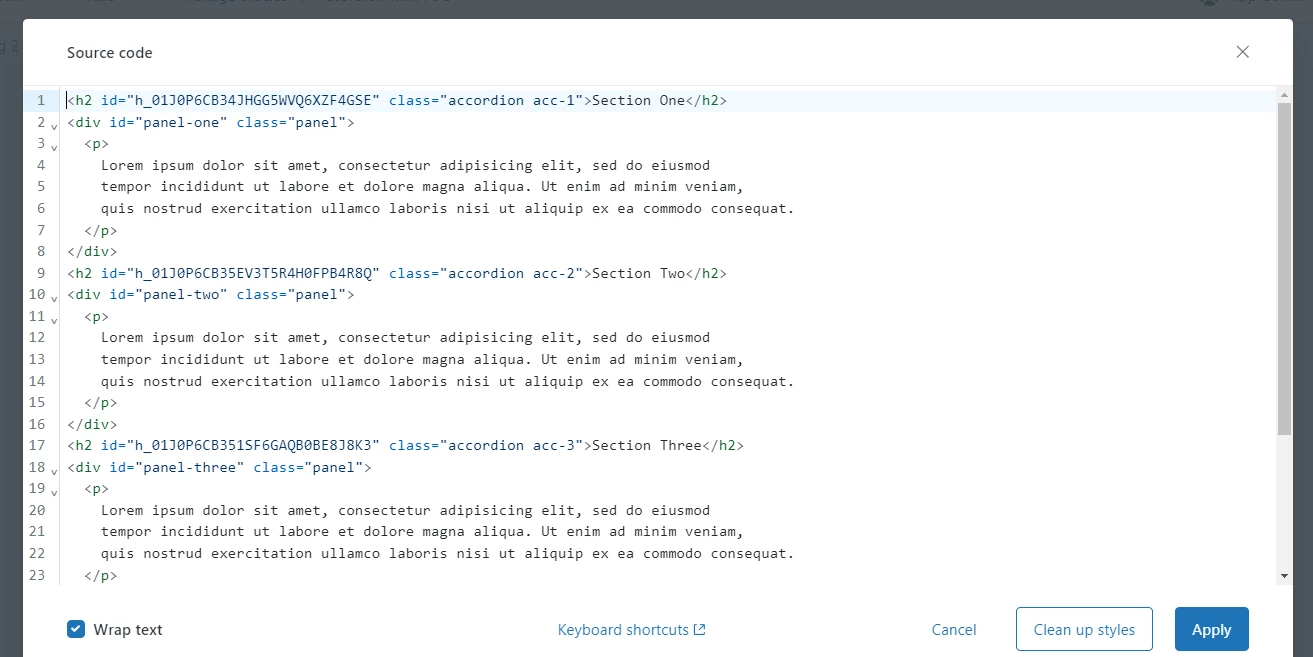
I). Add HTML code to your template.
 <h2 class="accordion">Section One</h2>
<div id="panel-one" class="panel" style="">
<p>Lorem ipsum dolor sit amet, consectetur adipisicing elit, sed do eiusmod tempor incididunt ut labore et dolore magna aliqua. Ut enim ad minim veniam, quis nostrud exercitation ullamco laboris nisi ut aliquip ex ea commodo consequat.</p>
</div>
<h2 class="accordion">Section Two</h2>
<div id="panel-two" class="panel">
<p>Lorem ipsum dolor sit amet, consectetur adipisicing elit, sed do eiusmod tempor incididunt ut labore et dolore magna aliqua. Ut enim ad minim veniam, quis nostrud exercitation ullamco laboris nisi ut aliquip ex ea commodo consequat.</p>
</div>
<h2 class="accordion active">Section Three</h2>
<div id="panel-three" class="panel" style="">
<p>Lorem ipsum dolor sit amet, consectetur adipisicing elit, sed do eiusmod tempor incididunt ut labore et dolore magna aliqua. Ut enim ad minim veniam, quis nostrud exercitation ullamco laboris nisi ut aliquip ex ea commodo consequat.</p>
</div>
<h2 class="accordion">Section Four</h2>
<div id="panel-four" class="panel">
<p>Lorem ipsum dolor sit amet, consectetur adipisicing elit, sed do eiusmod tempor incididunt ut labore et dolore magna aliqua. Ut enim ad minim veniam, quis nostrud exercitation ullamco laboris nisi ut aliquip ex ea commodo consequat.</p>
Add HTML code to your ‘Source code’ while creating the article to show accordion functionality on your article page.
II). Add JQuery CDN to your document_head.hbs file.
<script src="https://cdnjs.cloudflare.com/ajax/libs/jquery/3.7.1/jquery.min.js" integrity="sha512-v2CJ7UaYy4JwqLDIrZUI/4hqeoQieOmAZNXBeQyjo21dadnwR+8ZaIJVT8EE2iyI61OV8e6M8PP2/4hpQINQ/g==" crossorigin="anonymous" referrerpolicy="no-referrer"></script>
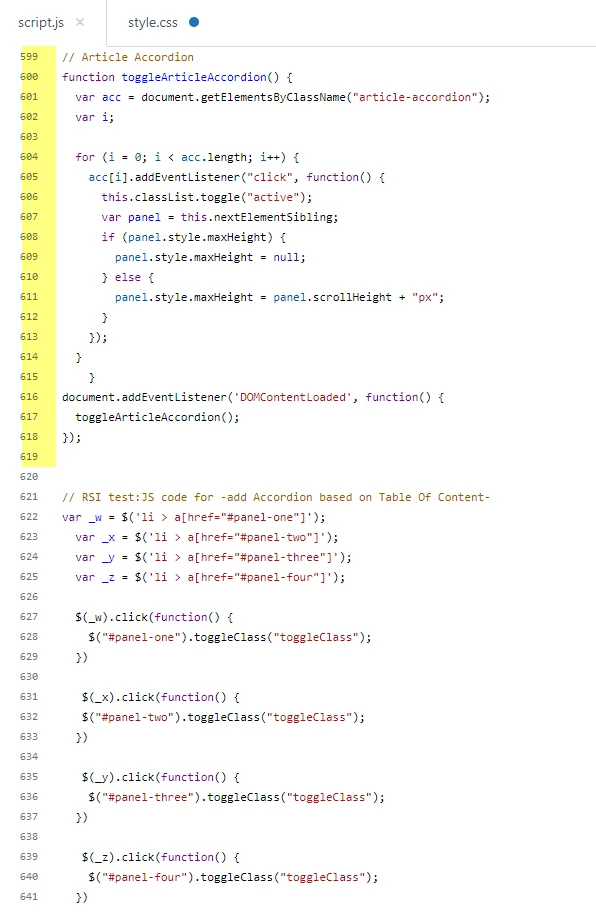
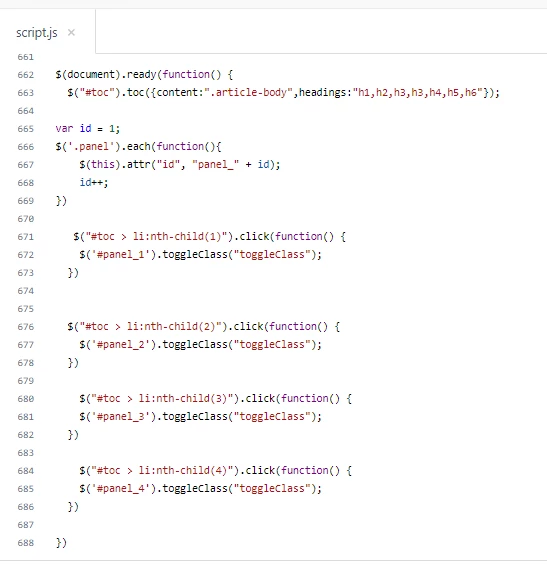
III). Add JS code to your script.js file inside the TOC code block, please see the given screenshot.
var id = 1;
$('.panel').each(function(){
    $(this).attr("id", "panel_" + id);
    id++;
})

   $("#toc > li:nth-child(1)").click(function() {
    $('#panel_1').toggleClass("toggleClass");
  })


  $("#toc > li:nth-child(2)").click(function() {
    $('#panel_2').toggleClass("toggleClass");
  })

    $("#toc > li:nth-child(3)").click(function() {
    $('#panel_3').toggleClass("toggleClass");
  })

    $("#toc > li:nth-child(4)").click(function() {
    $('#panel_4').toggleClass("toggleClass");
  })
Go to the article_page.hbs file and add this given code just after the {{article.body}}, this code is for ‘return to top’ , you won't need to scroll via mouse, click on it. Please see the given screenshot for the same.
 <div class="article-return-to-top show_always">
         <a href="#article-container">
           {{t 'return_to_top'}}
           <svg xmlns="http://www.w3.org/2000/svg" class="article-return-to-top-icon" width="20" height="20" focusable="false" viewBox="0 0 12 12" aria-hidden="true">
             <path fill="none" stroke="currentColor" stroke-linecap="round" d="M3 4.5l2.6 2.6c.2.2.5.2.7 0L9 4.5"/>
           </svg>
         </a>
       </div>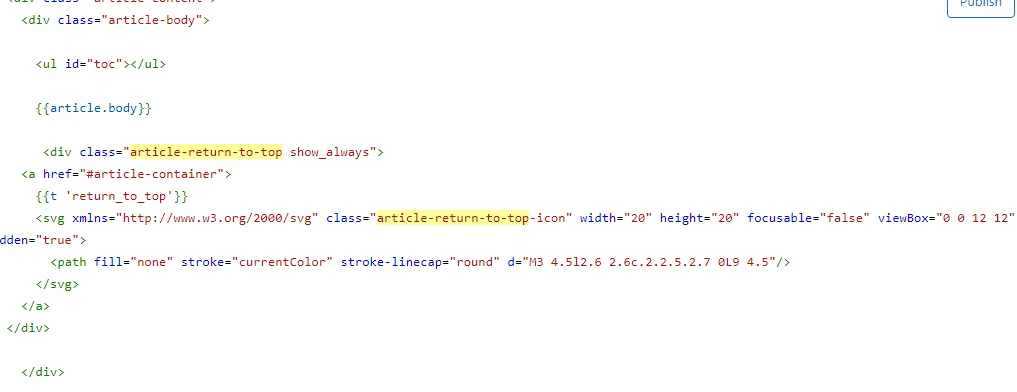
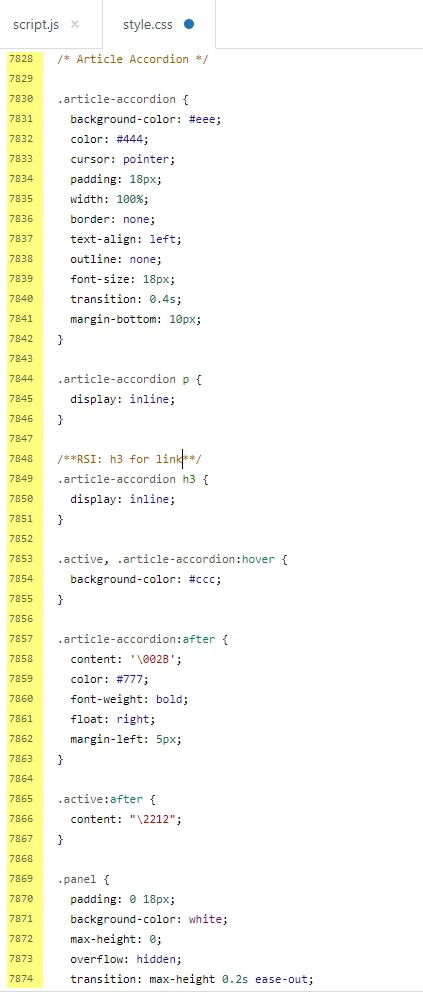
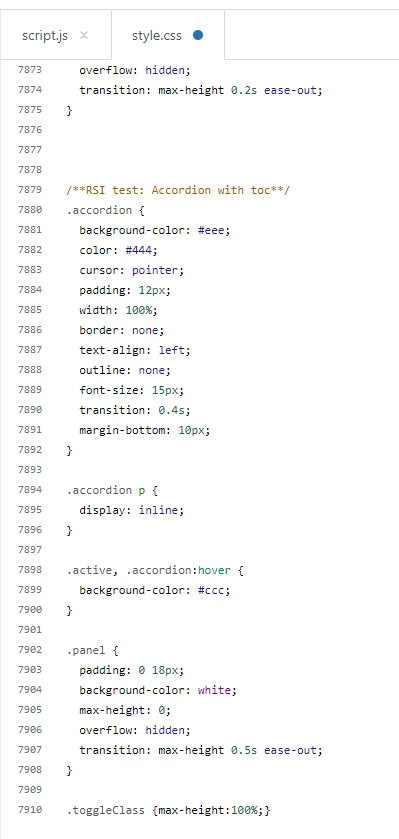
IV). Add the below code at the bottom of your style.css file.
html {
  scroll-behavior: smooth;
}

.accordion {
  background-color: #eee;
  color: #444;
  cursor: pointer;
  padding: 12px;
  width: 100%;
  border: none;
  text-align: left;
  outline: none;
  font-size: 15px;
  margin-bottom: 10px;
}

.accordion p {
  display: inline;
}

.active, .accordion:hover {
  background-color: #ccc;
}

.panel {
  padding: 0 18px;
  background-color: white;
  max-height: 0;
  overflow: hidden;
}

.toggleClass {max-height:100%;}

.article-return-to-top.show_always {
  display: block;
}
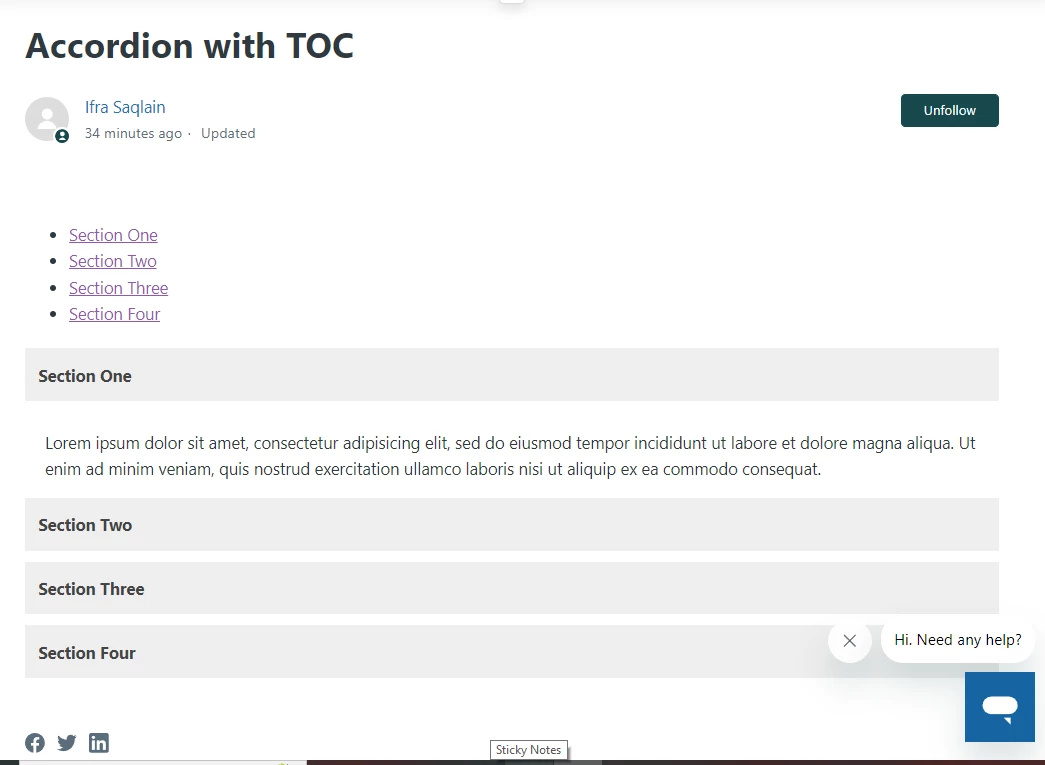
OUTPUT is:
If any issues fee free toask :)
Thank You