Creating Custom First Reply Time Brackets | Community
Skip to main content

Creating Custom First Reply Time Brackets

  • April 11, 2023
  • 4 replies
  • 0 views

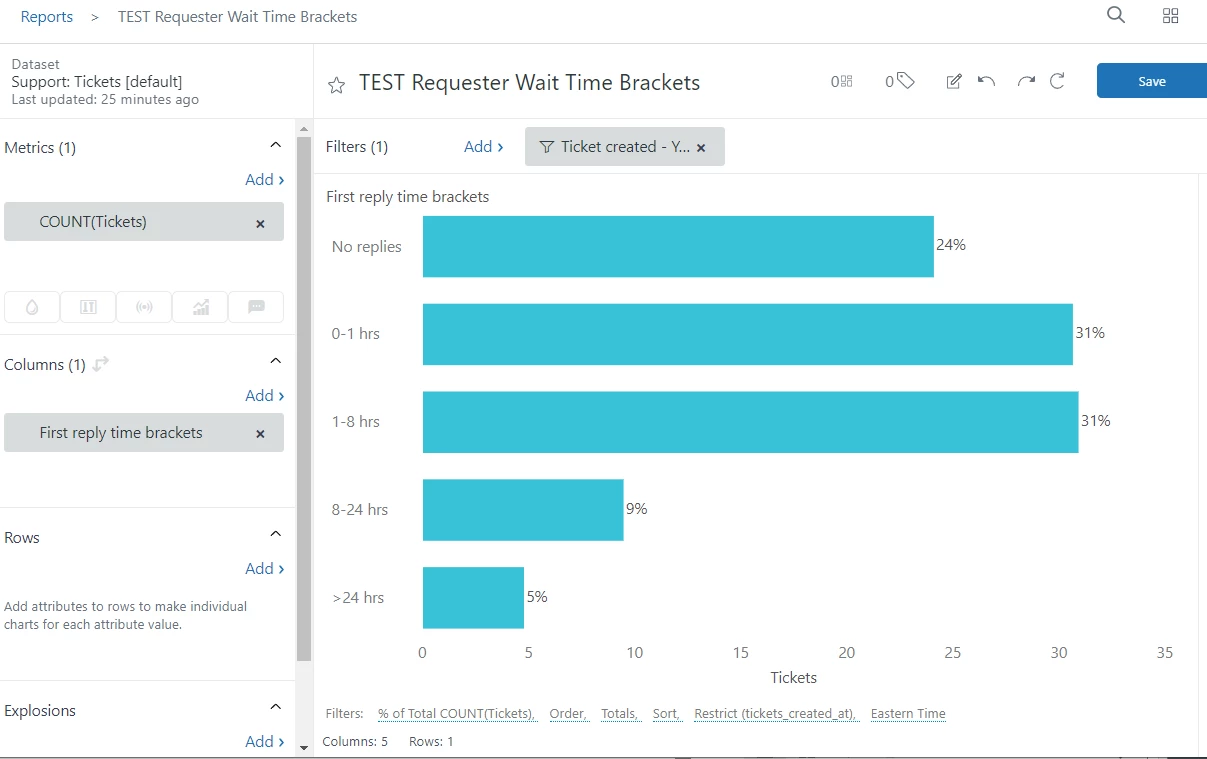
I am trying to have this look slightly different but can't figure out the recipe for the custom metric. I would like to break the hours down more:

  • No replies
  • 0-1 hrs
  • 1-4 hrs
  • 4-8 hrs
  • 8-16 hrs
  • 16-24 hrs
  • >24 hrs


4 replies

Zsa
  • April 14, 2023

Hello Kate,

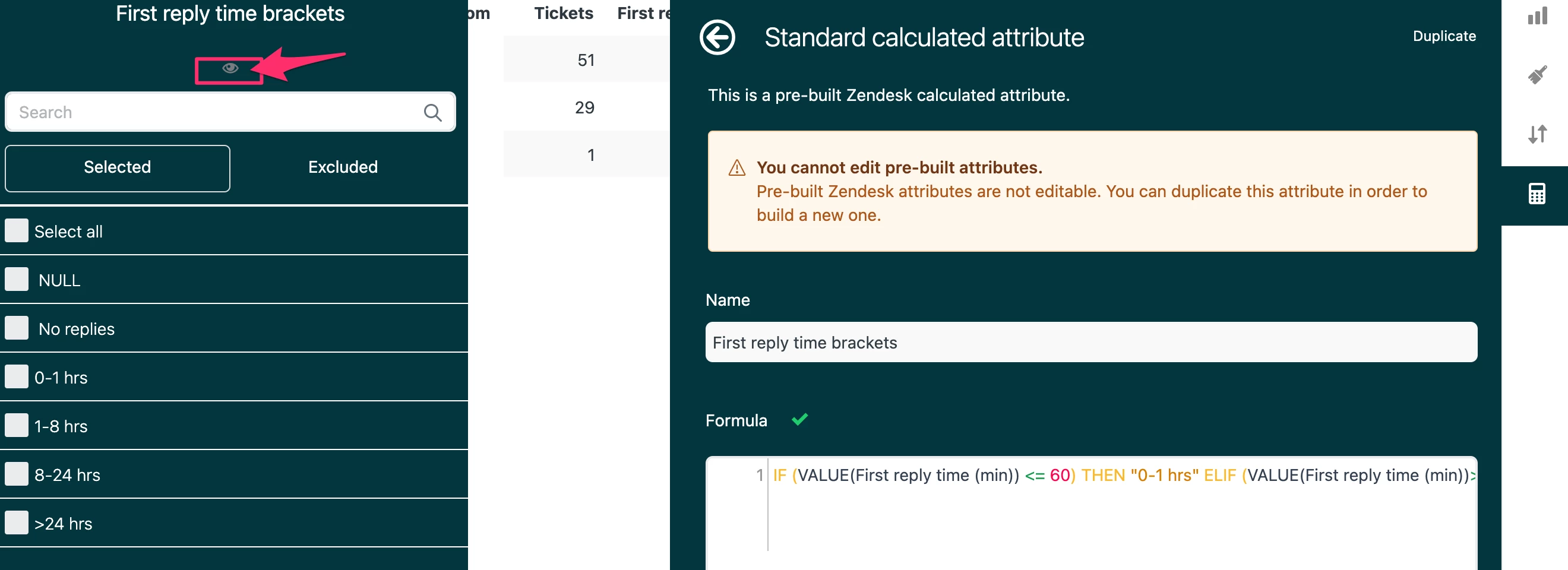
You can view the formula used for the default "First reply time brackets" if you click o the eye icon of the attribute. 

From there, you can copy the formula, create a new custom attribute & edit it depending on how you want to break down the hours:

In the break down of hours that you'd like to achieve, the formula should be like this:

IF (VALUE(First reply time (min)) <= 60) THEN "0-1 hrs"
        ELIF (VALUE(First reply time (min))>60 AND VALUE(First reply time (min)) <= 60*4) THEN "1-4 hrs"
        ELIF (VALUE(First reply time (min))>60*4 AND VALUE(First reply time (min)) <= 60*8) THEN "4-8 hrs"
        ELIF (VALUE(First reply time (min))>60*8 AND VALUE(First reply time (min)) <= 60*16) THEN "8-16 hrs"
        ELIF (VALUE(First reply time (min))>60*16 AND VALUE(First reply time (min)) <= 60*24) THEN "8-24 hrs"
        ELIF (VALUE(First reply time (min)) > 60*24) THEN ">24 hrs"
        ELSE " No replies"
ENDIF

  • Author
  • April 14, 2023

Thank you!


Jelena12
  • October 17, 2023

Hello!

@zsa Can you let me know with which Explore plan is this feature available? We would really like to customize these time brackets to go up to 48h instead of 24h.

Thanks!


  • October 18, 2023

Hi Jelena,

You need to be part of Zendesk Suite Professional and above or have an Explore Professional (standalone) subscription to be able to create a standard calculated attribute.

See: Creating standard calculated metrics and attributes

Hope this helps.