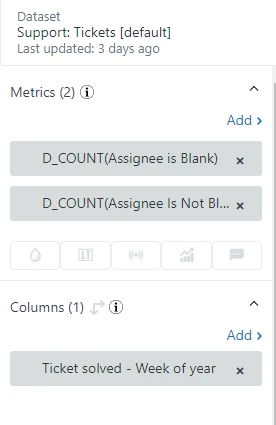
I'm trying to create a report that separates tickets solved into two rows: Assignee Name equals Null, and Assignee Name does not equal Null. I have a report with the metric set to 'Count(Tickets)' and the columns counting 'Ticket Solved - Week of Year (filtered to only 2022)'. I created a custom attribute that I figured should give me the two results I'm looking for. It reads:
IF ([Assignee name]="Null") THEN "True" ELSE "False" ENDIF
When I use this attribute in my columns, I can select the two options - which are Null and False - but the result is just a single bar counting every solved ticket for the given week, instead of two bars, one for Null and one for False. Can anyone point me to what I'm doing wrong here?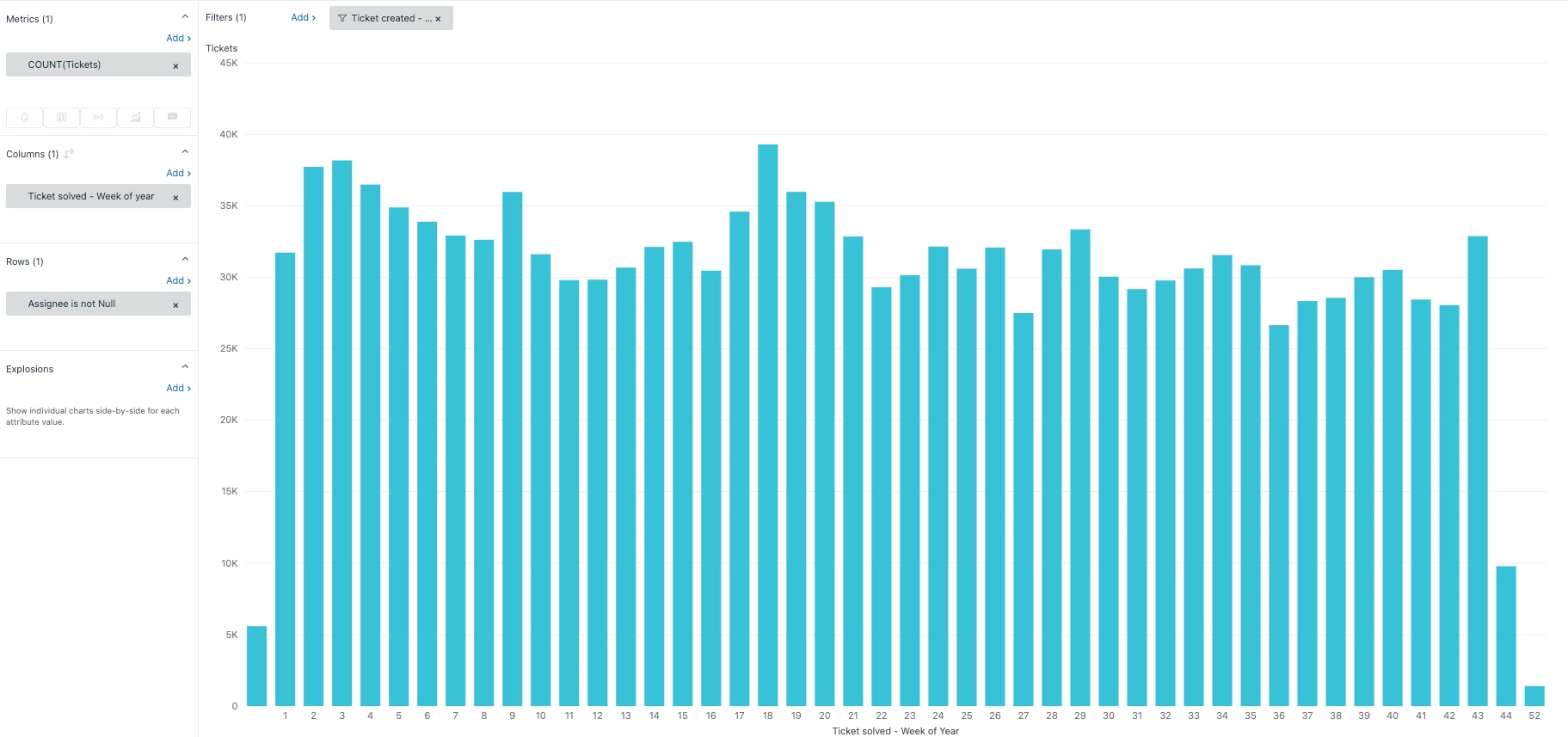

Creating Custom Attribute for Assignee Name



Login to the community
No account yet? Create an account
Enter your E-mail address. We'll send you an e-mail with instructions to reset your password.
You'll want to get rid of the parentheses around Null, this implies it is looking for a specific field value called null rather than just seeing if it is empty. So it should look like the following:
Let me know if you have any further questions.
Best regards,